AI Search for Website: How to Add Cloudflare AI Search in Minutes (2026)
Learn how to add AI search for your website using Cloudflare's public endpoints and UI snippets. Step-by-step video walkthrough by Cloudflare Developer Advocate Gift Egwuenu, from dashboard setup to live deployment in under 5 minutes.
Adding AI search for website content used to mean weeks of vector database setup, embedding pipelines, and retrieval tuning. Cloudflare changed that in March 2026 with public endpoints and pre-built UI snippets. This guide walks through the full setup: dashboard configuration to live deployment in under 5 minutes, based on Cloudflare Developer Advocate Gift Egwuenu's hands-on demo.
What you'll need:
- A free Cloudflare account with a domain added
- A website with a sitemap (blog, docs site, or any publicly crawlable site)
- Basic familiarity with HTML or a frontend framework (React, Astro, Next.js, etc.)
- Time estimate: 5-10 minutes
- Skill level: Beginner-friendly
Video Summary
Gift Egwuenu, Developer Advocate at Cloudflare, walks through setting up Cloudflare AI Search on her personal website (giftegwuenu.com). The video covers the March 2026 update that added public endpoints, UI snippets, and MCP support. Egwuenu's existing search was broken, so she replaces it live on camera with the new AI Search in under 3 minutes.
Quick overview of the process:
- Create an AI Search instance in the Cloudflare dashboard with a sitemap data source
- Connect an AI Gateway for model routing and usage metrics
- Enable the public endpoint so no API keys are needed on the client
- Choose a UI snippet (Search Bar, Search Modal, Chat Bubble, or Chat Page)
- Paste the search instance ID into the snippet component and deploy
Key Insights From the Demo
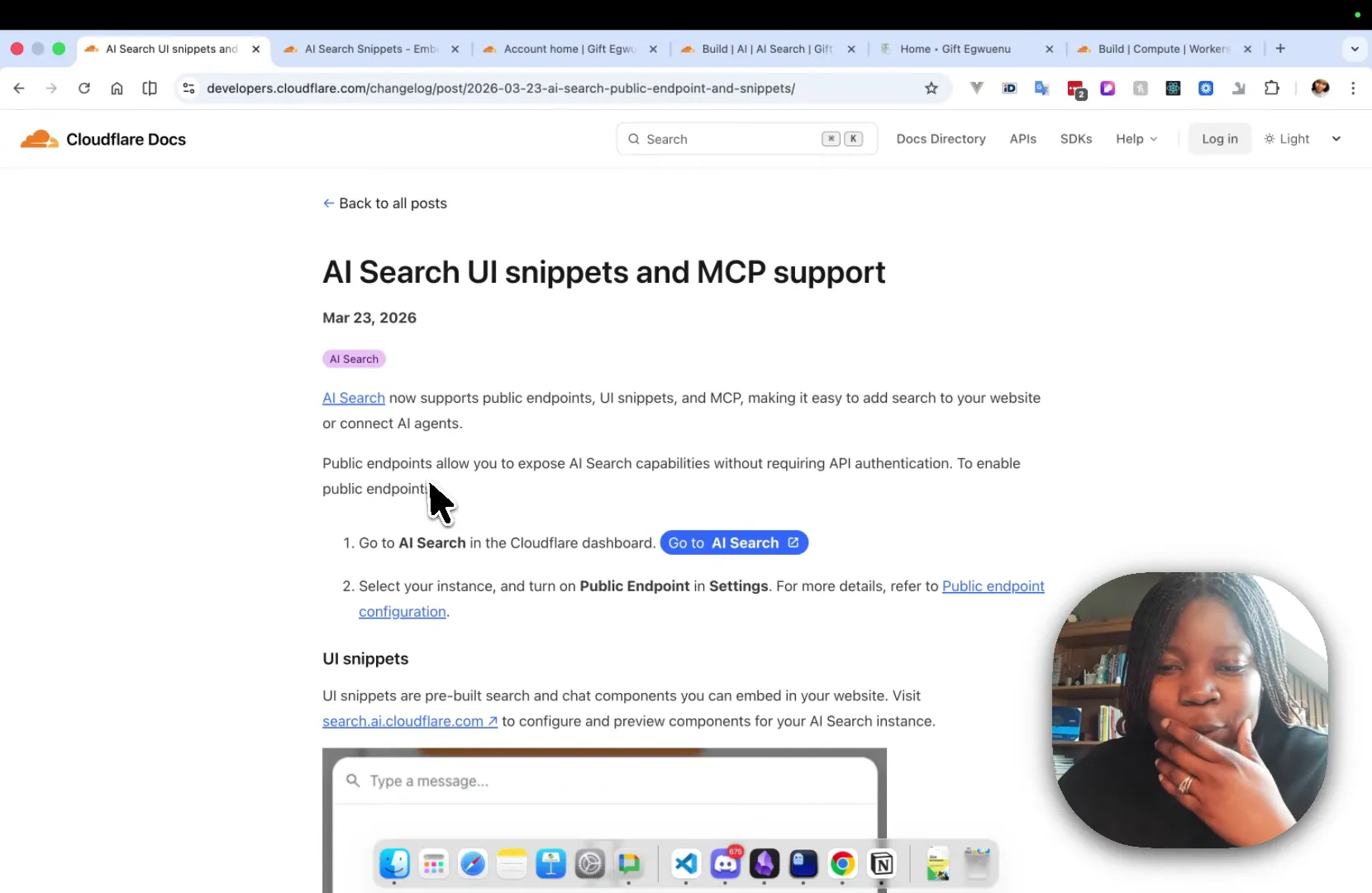
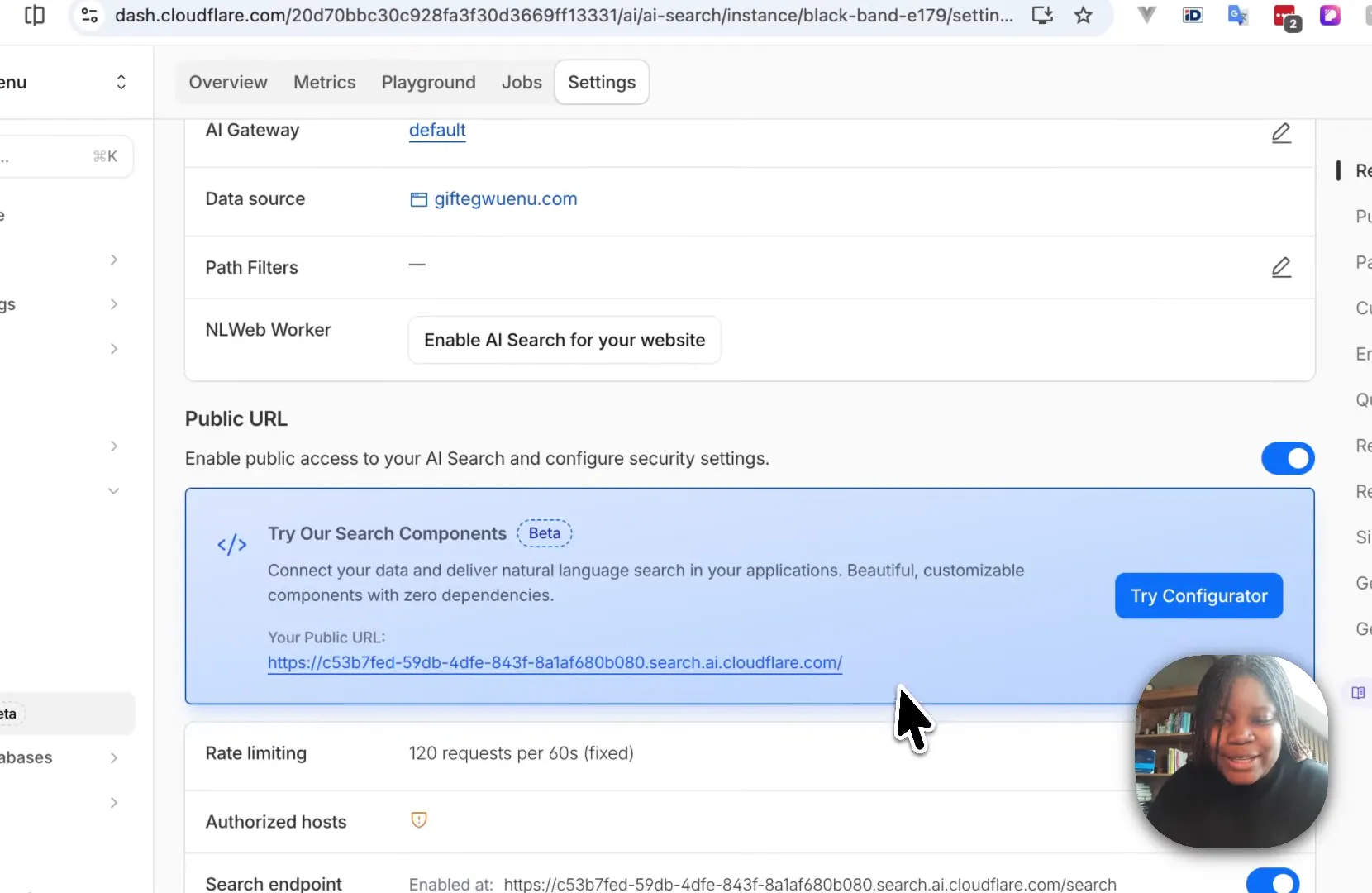
- Public endpoints remove the API key requirement from the client side. Before this update, using Cloudflare AI Search required authenticated API calls. The new public URL toggle in Settings lets you expose search capabilities without embedding secrets in frontend code. Rate limiting is fixed at 120 requests per 60 seconds.
Over here where you see public URL, this is what you need to turn on. So now we have this public URL we can add into our websites.

-
Four pre-built UI snippet types ship out of the box. Search Bar (inline dropdown for navbars), Search Modal (Cmd+K command palette style), Chat Bubble (floating widget), and Chat Page (full-page conversational interface). All are available at search.ai.cloudflare.com where you can preview them before copying code.
-
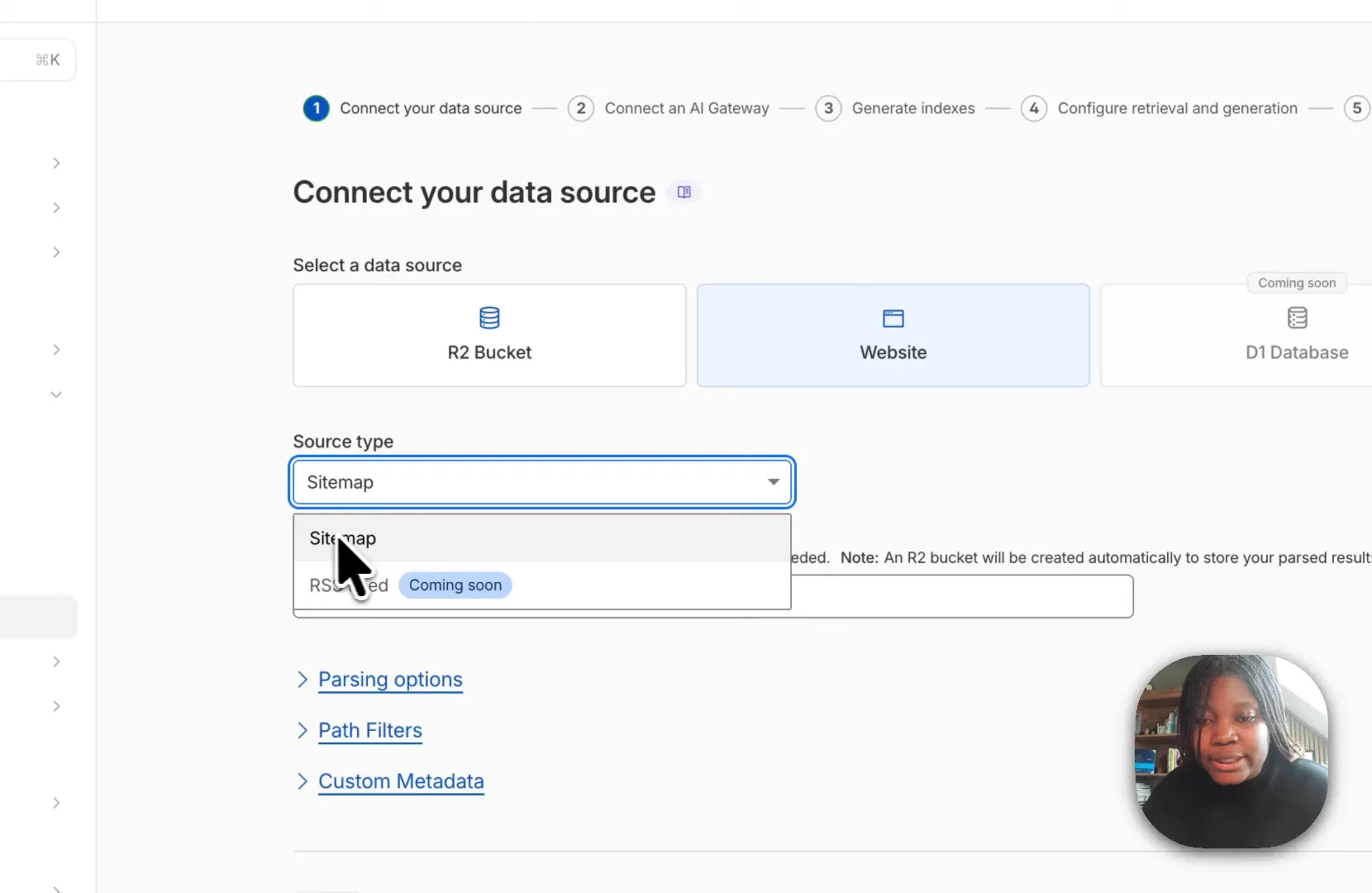
The setup wizard takes five steps, and most developers accept the defaults. Connect your data source (sitemap, R2 bucket, or D1 database), connect an AI Gateway, generate indexes, configure retrieval and generation, then name your instance. Egwuenu accepted default values for most options and finished the wizard in about 30 seconds.
Components that currently exist: search bar, search modal, chat bubble, and chat. It's nice because you can actually play around with them on this website before copying the components over to yours.
- MCP support was added in the same release. The changelog entry confirms AI Search now supports MCP (Model Context Protocol), which lets AI agents connect to your search instance programmatically.
I watched this video because I've been tracking how the major cloud providers are packaging RAG for developers who don't want to manage vector databases, embedding pipelines, and retrieval logic themselves. As Lead Engineer at WebSearchAPI.ai, I've spent the past several years building search infrastructure for AI applications, and the indexing-from-sitemap approach Cloudflare uses is the same pattern we rely on for many of our customers. What Cloudflare added with public endpoints changes the deployment model: you don't need a backend proxy to hide API keys anymore. For documentation sites and personal blogs, that's the difference between "I'll set this up this weekend" and actually shipping it.
If you're building AI-powered applications that need web search beyond a single site, our web search API guide covers how APIs like WebSearchAPI.ai provide real-time, structured results across the entire web for retrieval augmented generation workflows.
What Is AI-Powered Site Search?
AI-powered site search uses natural language processing and semantic vector indexing to deliver results based on meaning, not just keyword matching. Traditional site search works by scanning for exact text strings. If a user types "moving to a new framework" but your blog post title says "migrating to Astro 6," the traditional approach returns nothing. AI-powered site search closes that gap by converting both the query and your pages into vector embeddings, then finding the closest semantic matches.
The technology stack behind it typically involves three layers:
- Indexing — Your content (via sitemap, RSS, or database) gets parsed, chunked, and converted into vector embeddings
- Retrieval — User queries are embedded in the same vector space, and the nearest content chunks are pulled back
- Generation — An LLM takes the retrieved chunks and generates a direct answer with citations pointing back to your pages
This is the same retrieval augmented generation (RAG) architecture that powers tools like Google Search grounding and the Claude Web Search API. Cloudflare's AI Search wraps all three layers into a managed service you configure through a dashboard.
According to Semrush, AI search visitors are projected to surpass traditional search visitors by 2028. That shift makes on-site AI search a practical investment right now, not a future experiment.
Why Should You Replace Your Current Site Search?
Most site search implementations fall into one of two categories: a basic text-matching solution that returns poor results, or a third-party service that costs $50-200/month. Egwuenu found out firsthand when her own search broke.
One thing I want to do is actually realize today that the search on my website is broken for some interesting reasons. So this is just the perfect time to replace what I currently have with the new AI search.
Broken search isn't just an annoyance. According to ZipTie.dev, 93% of Google AI Mode searches end without a click to any website. When users do land on your site, they expect fast, accurate results. If your internal search fails them, they leave. AI-powered search understands intent behind natural language queries, meaning "migrating to Astro 6" finds the right article even when the exact phrase doesn't appear in the title.
Step 1: Choose Your UI Snippet Type
Before creating your search instance, decide which component fits your site. The AI Search Snippets configurator at search.ai.cloudflare.com lets you preview and customize four component types.
| Component | Best For | Trigger | Layout Impact |
|---|---|---|---|
| Search Bar | Navigation bars, sidebars | Click or focus | Inline, minimal |
| Search Modal | Documentation sites, content-heavy apps | Cmd/Ctrl + K | Overlay, zero layout shift |
| Chat Bubble | Support pages, product sites | Floating corner button | Fixed position widget |
| Chat Page | Full conversational search experiences | Dedicated page | Full-page takeover |
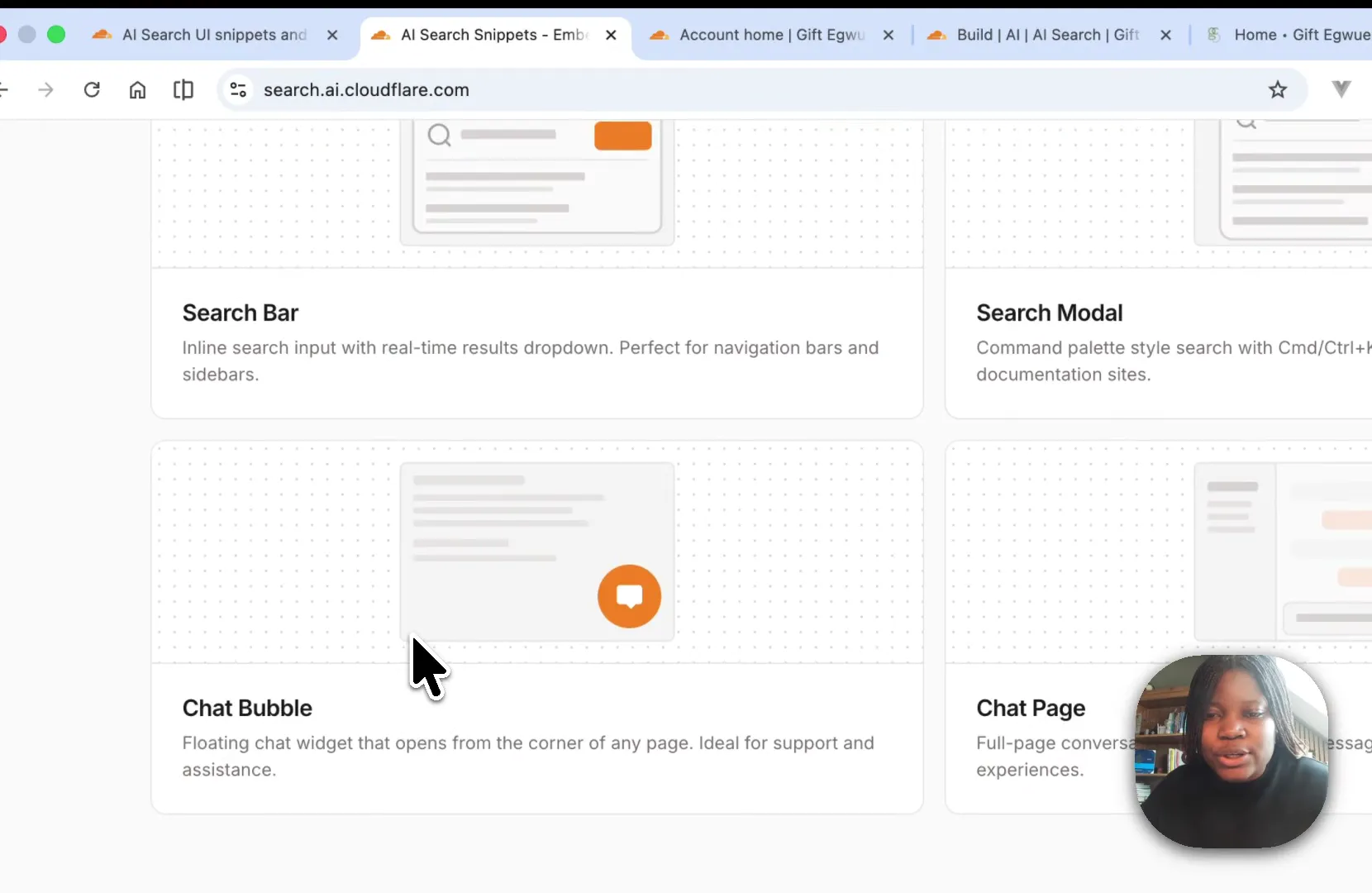
Each component is a zero-dependency web component. You configure your search instance ID and optionally customize the appearance. Egwuenu chose the Search Modal because it supports the Cmd+K pattern that developers expect on documentation and blog sites.
You'll know you're ready when: You've previewed at least two snippet types on the configurator site and identified which matches your site's navigation pattern.
Watch out for:
- Choosing Chat Page for a blog: Full-page conversational search makes sense for support portals but feels heavy on content sites. For blogs and docs, the Search Modal or Search Bar gives a better UX.
- Ignoring mobile behavior: The Chat Bubble works well on desktop but can obscure content on small screens. Test on mobile viewports before committing.
Pro tip: In my experience building search implementations for AI applications, the Search Modal with Cmd+K activation has the highest engagement rate on developer-facing sites. Developers already have the muscle memory from tools like VS Code and Raycast. Don't fight existing behavior.
Step 2: Create Your AI Search Instance in the Dashboard
The Cloudflare dashboard wizard walks you through five configuration screens. Here's what each one actually involves.
2a. Connect your data source. Navigate to AI > AI Search in your Cloudflare dashboard. Click Create. Choose between Website (sitemap), R2 Bucket, or D1 Database. For websites, select "Sitemap" as the source type and pick your domain. Parsing options, path filters, and custom metadata are available but optional.
2b. Connect an AI Gateway. Select the default gateway or choose a custom one. The AI Gateway handles model routing and gives you usage metrics. If you don't have an existing gateway, Cloudflare creates one automatically.
2c. Generate indexes. This step happens automatically after you select your data source. The system crawls your sitemap, parses each page, chunks the content, and generates vector embeddings.
2d. Configure retrieval and generation. Choose your model (the default works for most cases) and set any custom parameters for how answers are generated.
2e. Name your instance. Cloudflare generates a name automatically. You'll also need a search token if you haven't created one.
You'll know it's working when: You see a green status indicator on your AI Search instance in the dashboard, and the data source shows indexed page counts.
Watch out for:
- Missing sitemap: If your site doesn't have a sitemap at
/sitemap.xml, Cloudflare can't crawl it. Most static site generators (Astro, Next.js, Hugo) create one automatically, but check. Tools likenext-sitemapor Astro's built-in sitemap integration handle this. - Empty index results: If Cloudflare indexes zero pages, your sitemap might be returning a 403 or the URLs might be behind authentication. Verify the sitemap is publicly accessible by opening it in a browser.
Pro tip: I've seen teams skip the path filter option and end up indexing their privacy policy, terms of service, and 404 pages. Use path filters to include only /blog/*, /docs/*, or whatever sections contain your actual content. Cleaner indexes produce better search results.
Step 3: Enable the Public Endpoint
After creating your AI Search instance, go to Settings and find the Public URL section. Toggle it on. That's the entire step.
You get a public URL like https://{instance-id}.search.ai.cloudflare.com/ that works directly in frontend code without any API authentication.

Two important details from the settings page:
- Rate limiting is fixed at 120 requests per 60 seconds. You can't change this on public endpoints. For higher throughput, use the authenticated API.
- Authorized hosts let you restrict which domains can call the endpoint. Set this in production to prevent abuse.
You'll know it's working when: The public URL toggle shows green and you can open the URL in your browser to see a JSON response (even if it's an error about missing query parameters, the endpoint is live).
Watch out for:
- Skipping authorized hosts: Without domain restrictions, anyone can use your public endpoint and consume your rate limit. Always add your production domain to the authorized hosts list.
- Assuming unlimited throughput: 120 requests per 60 seconds works for personal sites and small teams. If you're running a high-traffic documentation site, plan for the authenticated API from the start.
Pro tip: Test the public endpoint with curl before wiring up the UI. A quick curl "https://{instance-id}.search.ai.cloudflare.com/?query=test" tells you immediately whether your index is returning results. I always verify the API layer works before touching the frontend.
Step 4: Add the UI Snippet to Your Code
The code integration is the simplest part. Egwuenu used the Search Modal snippet, which required two things: adding the snippet component to her site's layout and pasting the search instance ID from the dashboard.
I already have this wired up. I'm using the search modal snippets. And all I just need to do is copy over the search instance ID.
The snippet component handles all the UI, API calls, and result rendering. You don't write fetch calls or build result templates. The component connects to your public endpoint and manages everything.
For detailed implementation instructions, Cloudflare's embed search snippets documentation covers all four component types with code examples.
You'll know it's working when: After saving the file, your local dev server shows the search icon or modal trigger, and clicking it opens the search interface (even if no results appear yet before deployment).
Watch out for:
- Wrong instance ID: The search instance ID and the public URL are different strings. The snippet needs the instance ID, not the full URL. Copy it directly from the dashboard's overview page.
- CSP blocking the component: If your site has a strict Content Security Policy, the web component's script and styles may be blocked. Add
search.ai.cloudflare.comto yourscript-srcandstyle-srcdirectives.
Pro tip: If you're on a framework with server-side rendering (Next.js, Nuxt, SvelteKit), load the snippet component with dynamic() or the equivalent lazy-loading mechanism. The web component only runs in the browser, so server-side rendering it will throw errors.
Step 5: Deploy and Test
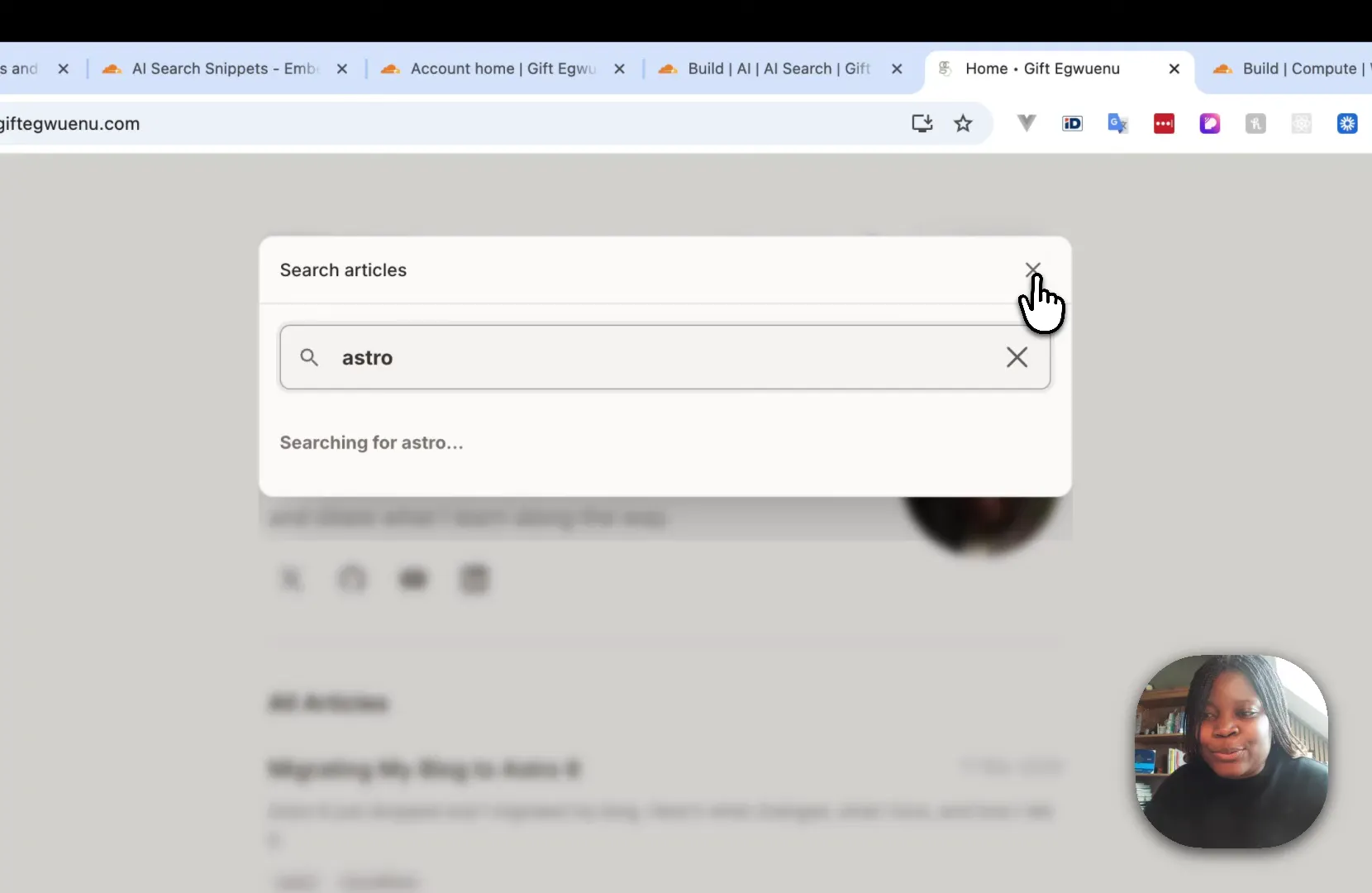
Egwuenu deployed with npm run deploy, pushing the updated code to her Cloudflare Worker. The search icon on her site immediately showed "Powered by Cloudflare AI Search" and returned results for her query about "migrating to Astro 6."

The whole process from dashboard setup to live deployment took under 3 minutes. Most of that was the dashboard wizard. The actual code change was a single line.
You'll know it's working when: You can open your deployed site, trigger the search, type a natural language query, and get results with source citations pointing back to your own content.
Watch out for:
- Stale index: If you just published new content, it won't appear in search immediately. Cloudflare needs to re-crawl your sitemap. You can trigger a manual re-index from the dashboard.
- Generic answers: If the search returns answers that don't reference your content, your sitemap might be pointing to pages with thin content or the index might still be building. Check the dashboard for index status.
Pro tip: After deploying, test with at least five different query styles: an exact title match, a natural language question, a topic query, a misspelling, and a multi-word phrase. This gives you a realistic picture of how the semantic search handles real user behavior. In my experience, AI search handles the first three well but sometimes struggles with heavy misspellings on small indexes.
Cloudflare AI Search vs. Other AI Search for Website Options
How does Cloudflare stack up against other ways to add intelligent search to your site? Here's a comparison based on what matters most to developers: setup speed, cost, and flexibility.
| Feature | Cloudflare AI Search | Algolia AI Search | Meilisearch | Custom RAG (DIY) |
|---|---|---|---|---|
| AI-powered (semantic) | Yes | DocSearch only | Hybrid (keyword + vector) | Yes |
| Setup time | ~3 minutes | 15-30 minutes | 30-60 minutes | Hours to days |
| Self-hosted option | No (managed) | No | Yes | Yes |
| Free tier | Included with CF account | Free for OSS | Free self-hosted | Cost of infra |
| Pre-built UI components | 4 snippet types | InstantSearch widgets | InstantSearch adapter | Build your own |
| Public endpoint (no auth) | Yes | No (API key required) | No (API key required) | Depends |
| MCP support | Yes | No | No | No |
| Data sources | Sitemap, R2, D1 | JSON records | JSON documents | Any |
| Conversational search | Yes (Chat Bubble, Chat Page) | No | No | Build your own |
The main trade-off: Cloudflare AI Search is locked into Cloudflare's ecosystem. If you're already on Cloudflare (Workers, Pages, R2), this is the lowest-friction option available. If you're on AWS or GCP, you'll need to decide whether adding Cloudflare to your stack is worth the convenience.
For developers building AI agents that need web-wide search rather than single-site search, there's a different category of tools. Our web search API alternatives comparison covers APIs that return structured, RAG-ready results from across the entire web, not just one domain.
What Results to Expect
After completing the setup, here's a realistic timeline:
- Immediately after deployment: The search UI is live and functional. Queries against indexed content return results with AI-generated summaries and source citations.
- First 24 hours: Cloudflare finishes indexing your full sitemap. Larger sites (500+ pages) may take longer. Check the dashboard for progress.
- First week: Usage patterns emerge. You'll see which queries users are running through the AI Gateway metrics. This data tells you what content gaps exist on your site.
- First month: If you're tracking engagement metrics, expect to see lower bounce rates on pages where users previously hit a dead end with broken or keyword-only search.
According to Recomaze, content optimized for generative engine optimization sees 30-40% higher visibility. Adding AI-powered search to your site is one part of that optimization: it keeps users engaged with your content rather than bouncing back to Google for answers your site already has.
Advanced Tips for Getting More Out of AI Site Search
Use path filters to improve answer quality. Exclude landing pages, legal pages, and thin content from your search index. The fewer irrelevant pages in the index, the more accurate the semantic retrieval becomes.
Connect multiple data sources. If your site has both a blog (sitemap) and documentation stored in an R2 bucket, you can connect both to a single AI Search instance. This gives users a unified search across all your content.
Monitor queries through AI Gateway. The AI Gateway dashboard shows you every query hitting your search instance. Use this to identify common questions your content doesn't answer yet. It's free user research.
Pair site search with web search for AI agents. If you're building AI agents or chatbots, site-level search covers your own content, but agents often need broader web context. That's where a dedicated web search API fills the gap, providing real-time results from across the web that your agent can combine with site-specific answers. For a deeper look at how AI agents use search, see our guide on AI agent deployment.
Tools Mentioned in This Guide
| Tool | Purpose | Price | Best For |
|---|---|---|---|
| Cloudflare AI Search | Managed AI-powered site search | Included with CF account | Sites already on Cloudflare |
| AI Search Snippets Configurator | Preview and customize UI components | Free | Choosing the right search UI |
| Cloudflare AI Gateway | Model routing and usage analytics | Included with CF account | Monitoring search usage |
Frequently Asked Questions
What is Cloudflare AI Search?
Cloudflare AI Search is a managed RAG (Retrieval-Augmented Generation) service that indexes your website content and provides AI-powered search. It crawls your sitemap, converts pages into vector embeddings, and uses an LLM to generate answers grounded in your content. As of March 2026, it supports public endpoints, pre-built UI snippets, and MCP integration, making it possible to add AI search to any website in under 5 minutes.
How much does Cloudflare AI Search cost?
Cloudflare AI Search is included with your Cloudflare account at no separate fee. Workers AI model inference costs apply based on your usage tier, but the search infrastructure itself (indexing, retrieval, UI components) doesn't carry a standalone charge. The AI Search documentation on Cloudflare's developer docs covers current pricing details.
How can I find AI search for website free?
Cloudflare AI Search is free to set up with a Cloudflare account. Meilisearch offers a free self-hosted option with hybrid search capabilities. For open-source alternatives, you can build a custom RAG pipeline using LangChain or LlamaIndex with a free vector database like Chroma, though setup time goes from minutes to hours. If you're evaluating multiple options, our comparison of AI web search API options covers pricing across different providers.
What is the best AI search for website?
It depends on your stack and requirements. Cloudflare AI Search wins on setup speed (under 5 minutes) and is the best choice if you're already on Cloudflare. Algolia offers stronger personalization and analytics for high-traffic e-commerce sites. Meilisearch provides sub-50ms response times with self-hosting control. For AI agents that need web-wide search beyond a single site, a dedicated web search API gives you structured results across the entire internet.
How does AI site search differ from Google custom search?
Google's deprecated custom site search returned ten blue links using keyword matching. AI-powered site search uses semantic understanding to match user intent with your content, then generates conversational answers with citations. Instead of returning a list of pages, it answers the question directly using your own content as the source material. For more on how Google's own AI search works, see our analysis of Google AI search.
What are the top AI search engines in 2026?
The question covers two different categories. Public AI search engines (ChatGPT Search, Perplexity, Google AI Mode) help users find information across the web. Site-level AI search tools (Cloudflare AI Search, Algolia, Meilisearch) help owners add intelligent search to their own properties. According to Digital Applied, Google AI Mode has reached 75 million daily active users, showing the scale of the shift toward AI-powered search experiences.
How do public endpoints work in Cloudflare AI Search?
Public endpoints expose your AI Search instance through a URL that doesn't require API authentication. Enable it with a single toggle in Settings. Rate limiting is fixed at 120 requests per 60 seconds. You can restrict access to specific domains using the authorized hosts setting. This means your frontend JavaScript calls the endpoint directly without a backend proxy or exposed API keys.
How do I add AI-powered search using GitHub Pages or a web app?
The UI snippet approach works with any frontend framework or static site. Copy the web component code from the Cloudflare Snippets configurator, add it to your HTML or component file, insert your search instance ID, and deploy. For GitHub Pages sites, add the snippet to your layout template. For React/Next.js apps, import it as a dynamic component. The snippet is framework-agnostic since it's a standard web component.
Does Cloudflare AI Search support MCP?
Yes. The March 23, 2026 changelog confirms MCP (Model Context Protocol) support. This lets AI agents connect to your AI Search instance programmatically, opening up agent-to-search workflows. If you're building agents that need to search your site's content, MCP provides a standardized protocol for that connection. For more on how file-based RAG works alongside web search, check out our article on RAG with file search.
Key Takeaways
- Cloudflare AI Search now supports public endpoints that eliminate client-side API key authentication, with rate limiting fixed at 120 requests per 60 seconds.
- Four pre-built UI snippet components (Search Bar, Search Modal, Chat Bubble, Chat Page) can be previewed at search.ai.cloudflare.com and embedded with just a search instance ID.
- The entire setup, from dashboard configuration to live deployment, took Gift Egwuenu under 3 minutes. The code change was a single string: the search instance ID.
- Sitemap indexing is the primary data source for websites. R2 Bucket and D1 Database are also supported, with RSS Feed coming soon.
- MCP support was added in the same March 2026 update, enabling AI agents to interact with your search instance through a standardized protocol.
- The public endpoint rate limit of 120 requests per 60 seconds is fixed. For higher-volume applications, use the authenticated API instead.
- AI-powered site search uses semantic vector indexing and retrieval augmented generation to match user intent, not just keywords, delivering direct answers grounded in your own content.
This post is based on Add AI Search to Your Website in Minutes with Cloudflare! by Cloudflare Developers.